Role-Based Access Control (RBAC)
Trivore ID uses Role-Based Access Control (RBAC). The basic building blocks of RBAC are roles, permissions, and resources: a permission lets a principal — a user account or Management API Client — perform a specific action or access a specific resource, such as editing user accounts; a role is simply a named collection of one or more permissions.
Users are given one or more roles depending on the tasks they need to perform. Which views a user sees in the Management UI's main menu, and whether they can manage or only view the objects in them, depends on their currently assigned roles and permissions.
Trivore ID extends this basic model with groups: instead of assigning roles to individual users, roles are usually assigned to a group, and every user who is a member of that group gains them. The paths permissions can take from a role to a user are covered in more detail below.
Roles and permissions
A role is a management unit in Trivore ID. Roles are preferably assigned to groups, but can still be assigned to user accounts directly — though this direct assignment is deprecated and being phased out. There are two classes of role: built-in, static System Roles, and flexible Custom Roles. Most System Roles come in two permission levels, reflected in their name: Admin roles can administer and manage, while Auditor roles are read-only.
A permission is a much more granular unit than a role — each one allows only a small, specific action. If a signed-in user's account is missing a permission (for example, the one needed to list user accounts), they simply can't perform tasks that require it. Some permissions, such as listing user accounts, are required by many different roles, so there's a fair amount of overlap between roles. Understanding permissions still matters even though they're rarely discussed directly, since they're what a role actually consists of — creating a Custom Role means choosing which permissions to assign to it, which is in turn assigned to a group, and from there to user accounts.
Trivore ID's access model is fine-grained: there are hundreds of individual permissions in the core system, well organised into a logical structure, with business extensions able to introduce further permissions on top. A generous set of predefined roles cover most common needs, making it easy to give a user a functional set of permissions for their tasks without building a Custom Role from scratch.
User permission paths
Users can gain permissions through several different paths, listed below in order of preference. Assigning roles or permissions directly to a user account is deprecated and should be avoided where possible:
- Custom roles through groups
- Custom roles through the namespace default account policy (a special case that gives roles to every account in a namespace at once)
- Direct Custom roles (deprecated)
- Direct System roles (deprecated)
- Direct permissions (deprecated)
The recommended role structure
The recommended structure keeps things simple: a namespace only has Roles, freely managed within it. Roles are normally assigned to a Group — every member of the group gains the role's permissions. The one exception is namespaces that don't use groups at all: in that case, a role can instead be assigned to the namespace default account policy, which applies it to every user in the namespace.
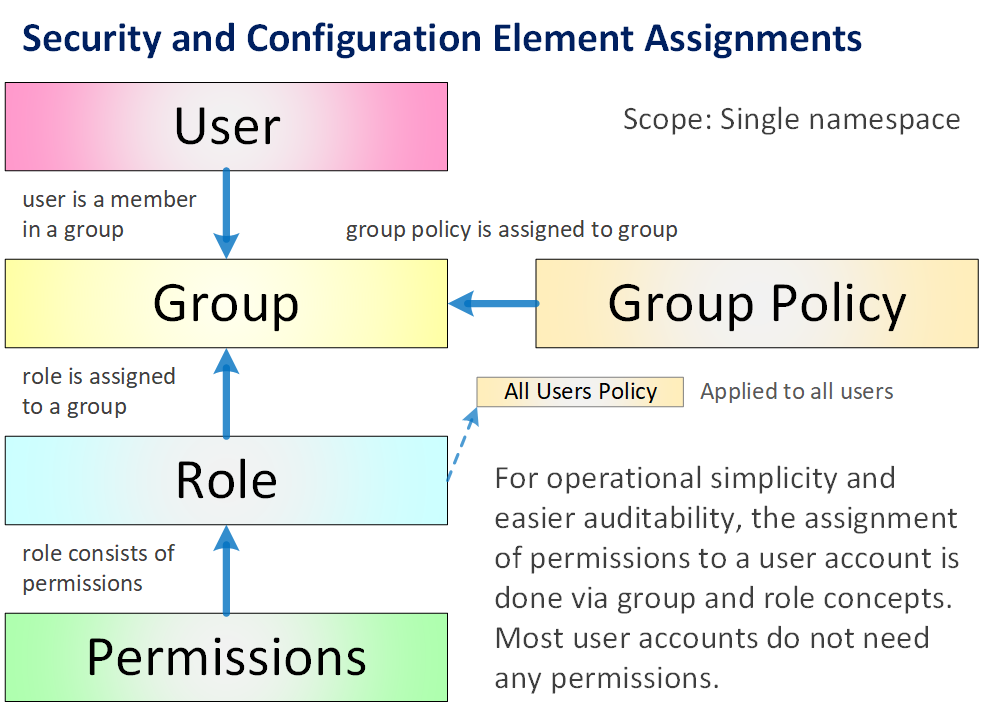
Namespaces can also assign a set of custom roles directly to the default account policy, giving every user account in the namespace those roles without needing a group at all.
See Roles for how to create and manage roles in the Management UI.
Direct permission paths
Assigning roles or permissions directly to a user account, bypassing groups entirely, is deprecated. It's still fully supported for backwards compatibility and to allow a gradual migration to the group-based structure above, but shouldn't be used for new configuration.
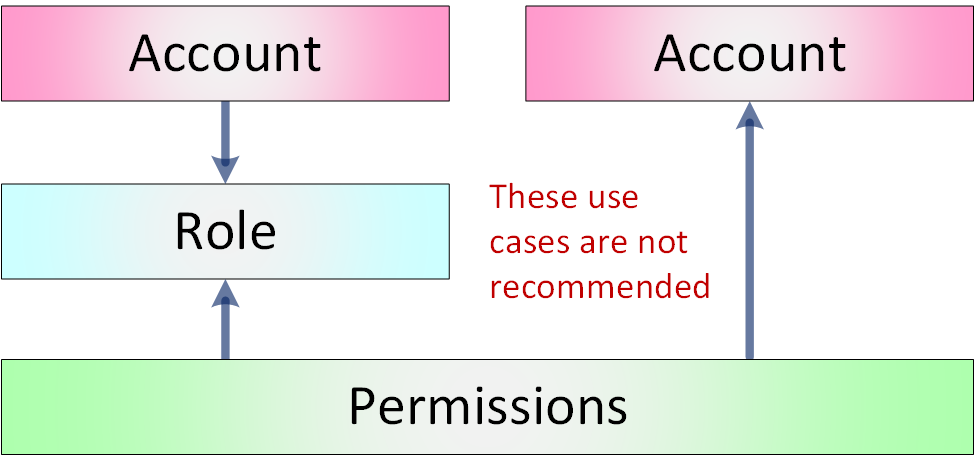
Direct roles — both System and Custom — and direct permissions can be managed in the user account editor in the Management UI, or through the Management API.
Migrating to the newer role structure
Migrating away from direct role/permission assignment can be done incrementally: there's no need to change every user account at once. Instead, apply the group-based structure whenever you're already making a change — for example, when a user needs a new role, add them to a group that has an equivalent Custom Role instead of assigning a System Role to them directly.
The Roles view in the Management UI includes a tool for exactly this migration: it can re-create an old System Role as an equivalent, customisable Custom Role.